Tag Archives: drawing

Cafe Muse, part3

20

Sorry about the gap guys, I’ve been really busy with all the work I picked up from the bodybuilding show I attended. Add to that the gymwear and logos and…well, let’s say doing all that and working a full time job has left me short on time!

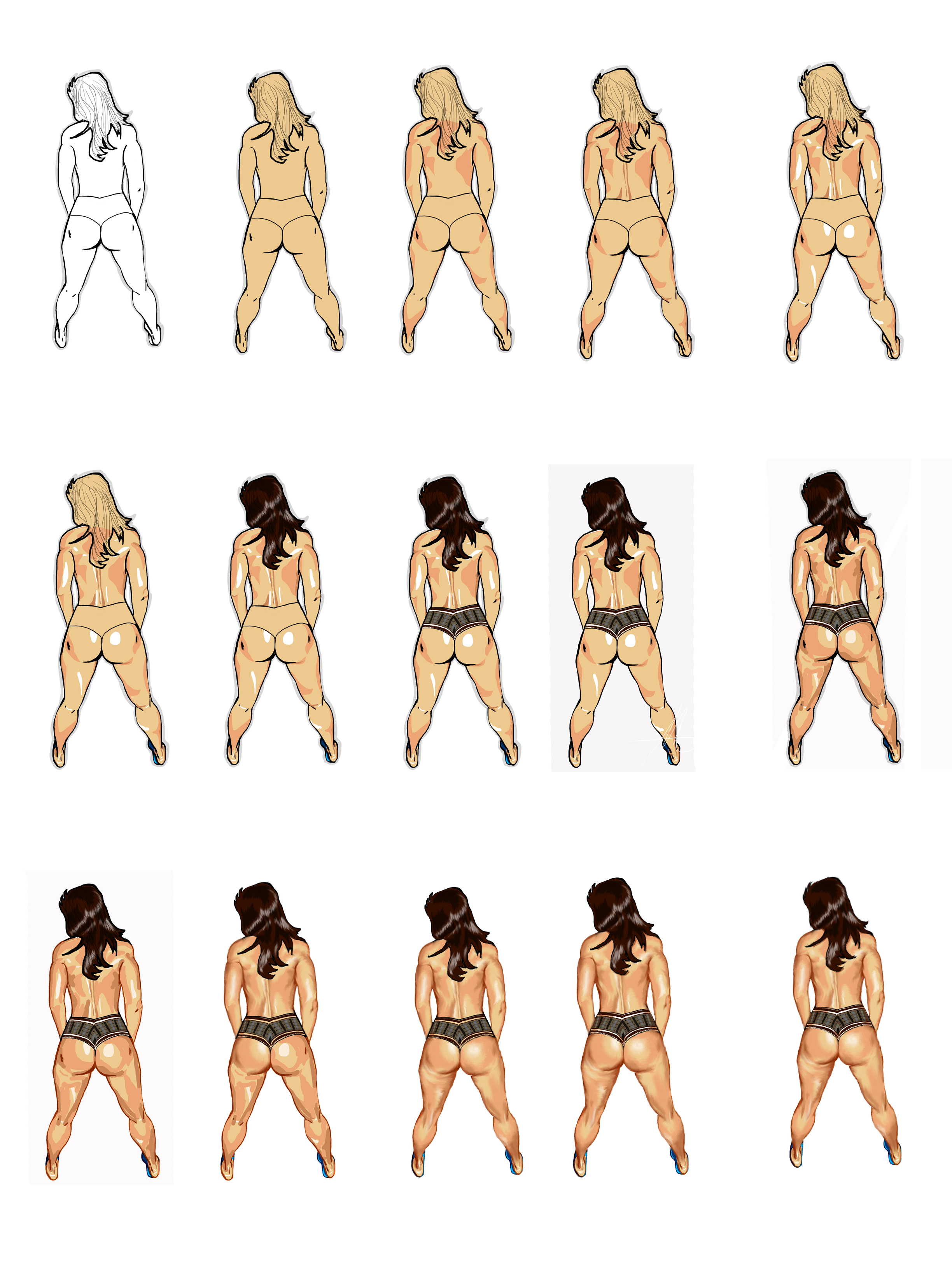
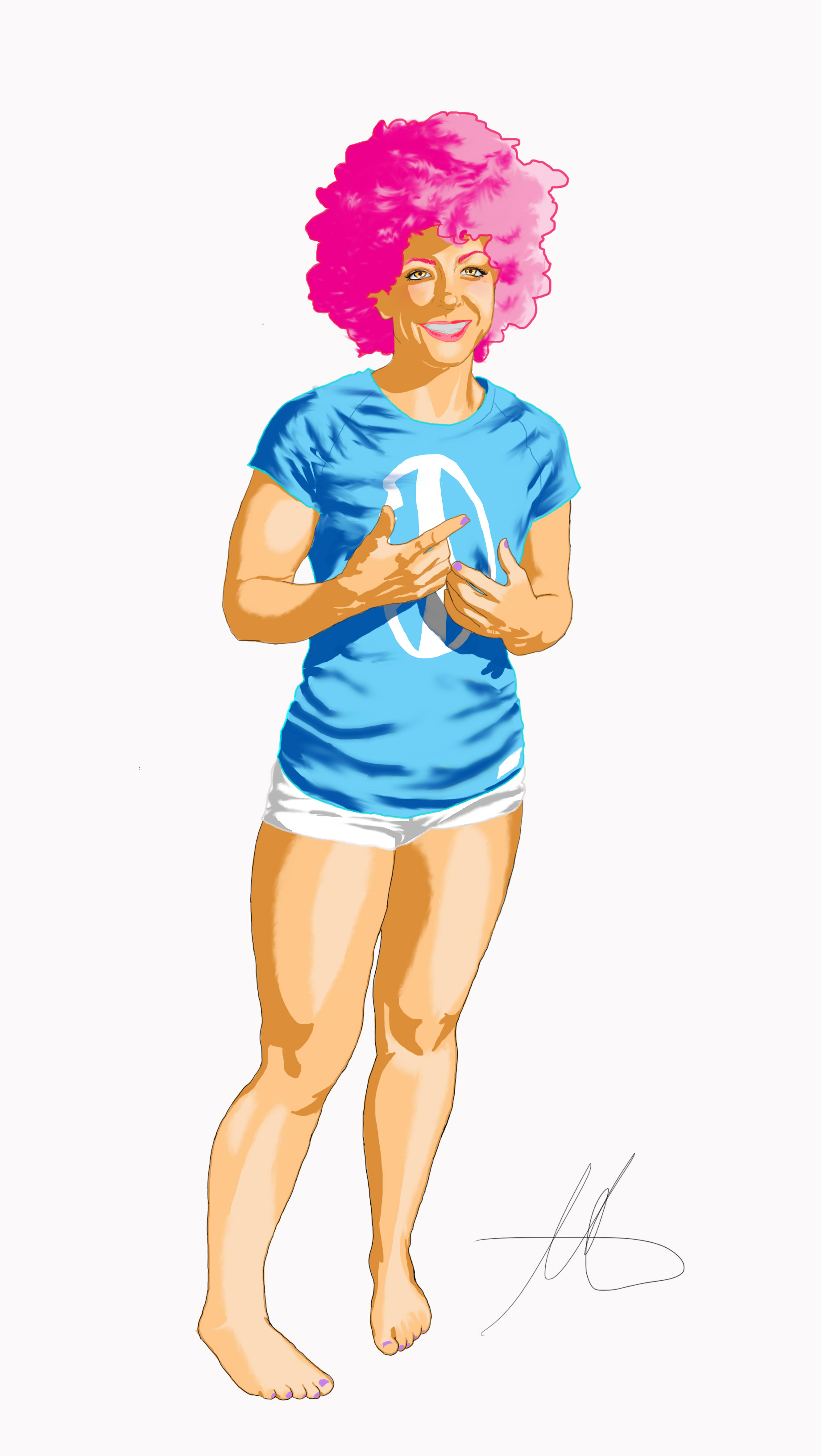
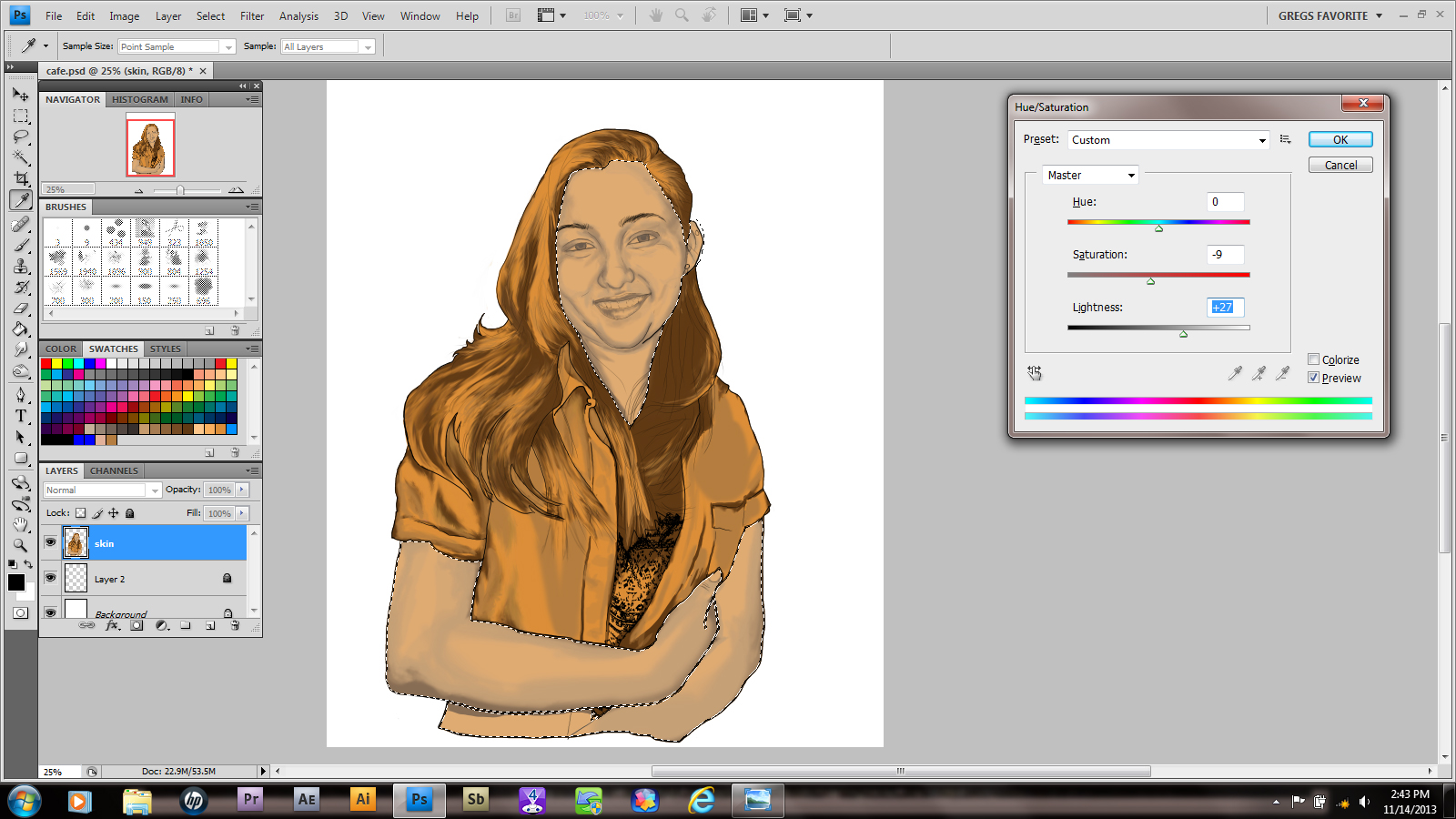
As you can see from the above photo, I pretty much got everything the way I wanted in the photo. Now I merge all my shading layers down into one layer. Then, using the lasso tool, I outlined all my skin tones. Finally, I use Ctrl+U to get my saturation tool to adjust skin color. Make sure you select the colorize box!

21

Little by little, select and isolate the colors needed to create the look you want.
22

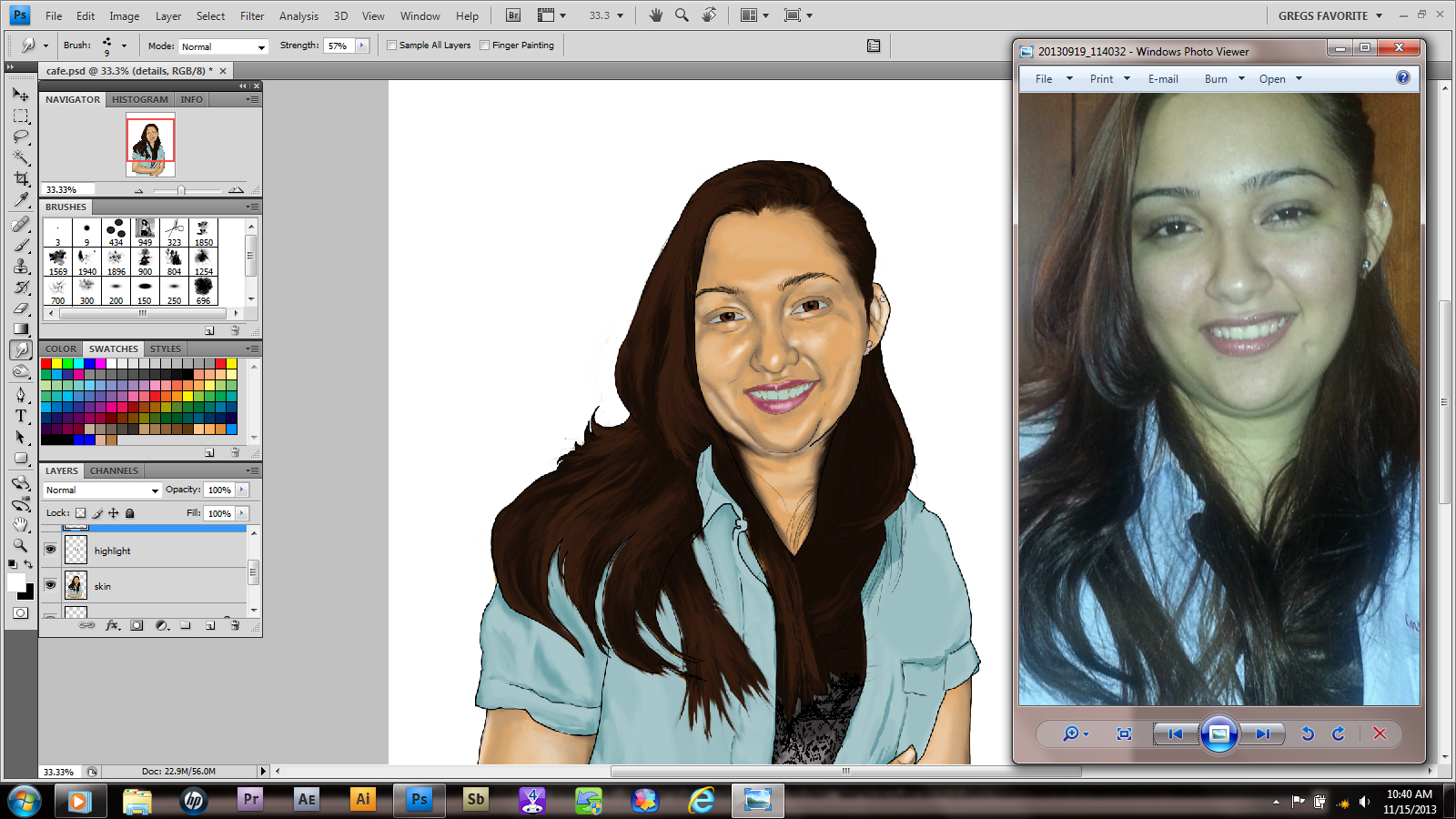
Next, I began to add facial highlights. I’m going to be honest; If this picture were going for more realism, I wouldn’t use these at ALL. I mean, there’s no truly white areas on your body, right? (sorry vampires)
23

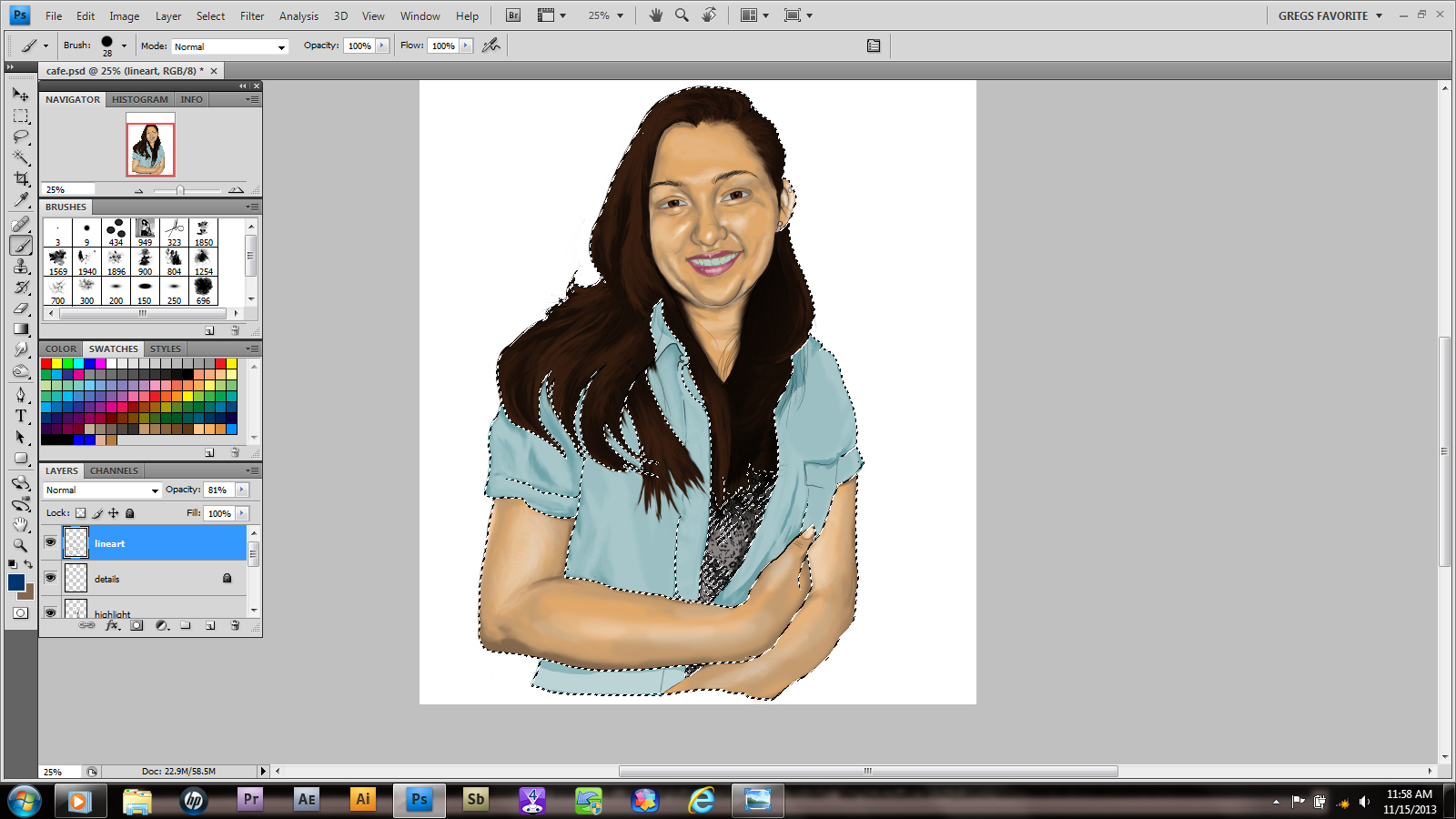
This step is optional, changing the line colors. I don’t always do it, but sometimes it works really well. Others…well, that’s what Ctrl+Z is for. Plus in the side by side comparison the image seems a little wide.

24

I added a background gradient, then erased a strip out of it. I’m not going to get too fancy with it. Besides, its a poster so I could put a year calendar, a memo spot or anything she wants there.

Hope you guys enjoyed the basic premise! Of course the hair will be done on the finished piece, but now you know how it’ll happen. Good luck and have fun!

Cafe Muse Part 2

3

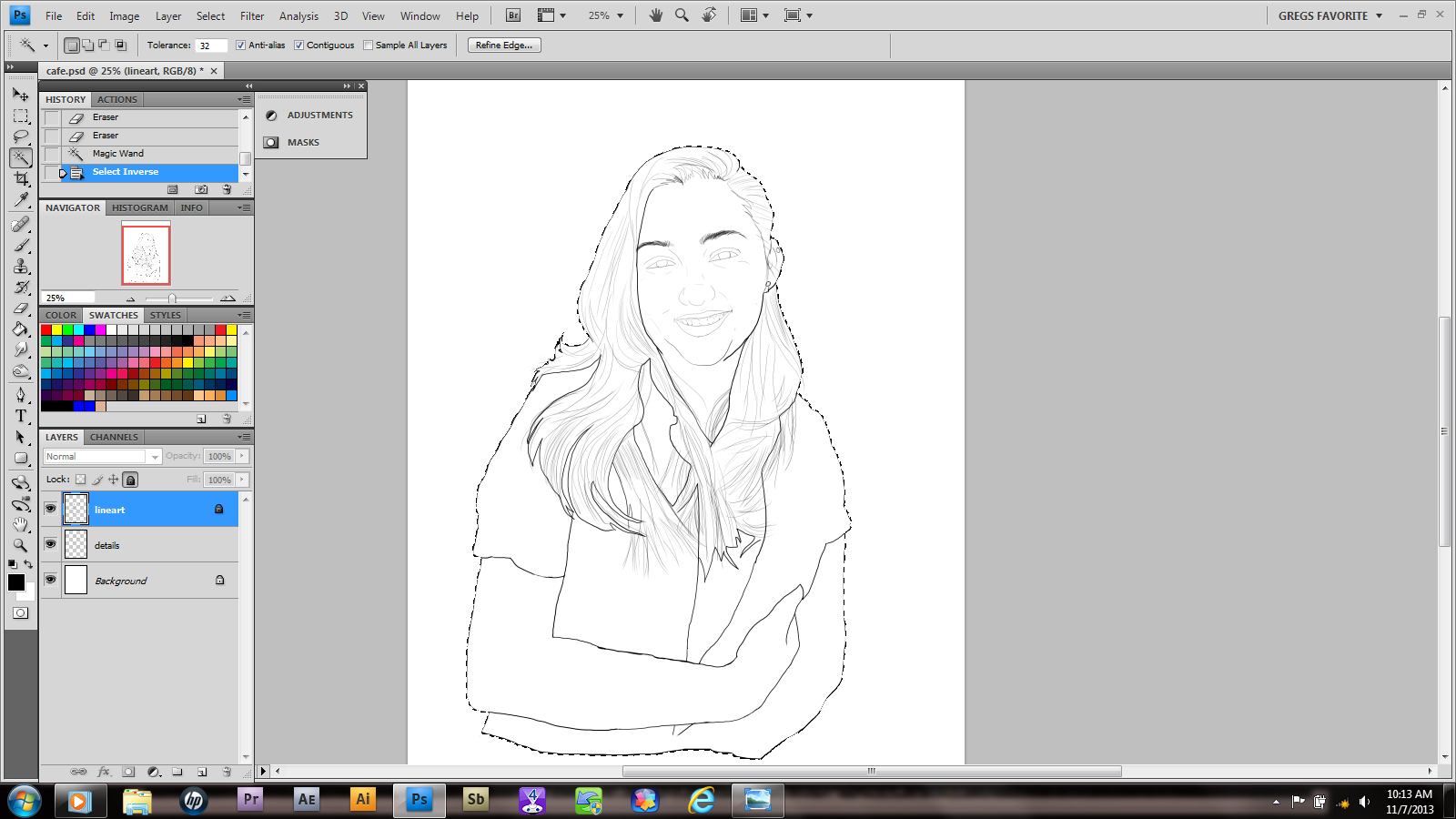
Today I turned on my brain and decided to make a screen capture of what I’m doing. That way you can see the layers and whatnot that I use. For example, here I’m cleaning up my lines and making sure my artwork is consistent with the image. its not easy, but these little touches are what  help make this piece. It’s always a good idea to do cleanup.

4

Using your selection tool, highlight your canvas. Since I’m on a PC, ctrl/shift/I inverts the tool so that it selects only the artwork. Also I make sure to use my outline layer for this. Its locked so that any mistakes I make won’t affect it. (accidents do happen!)

5

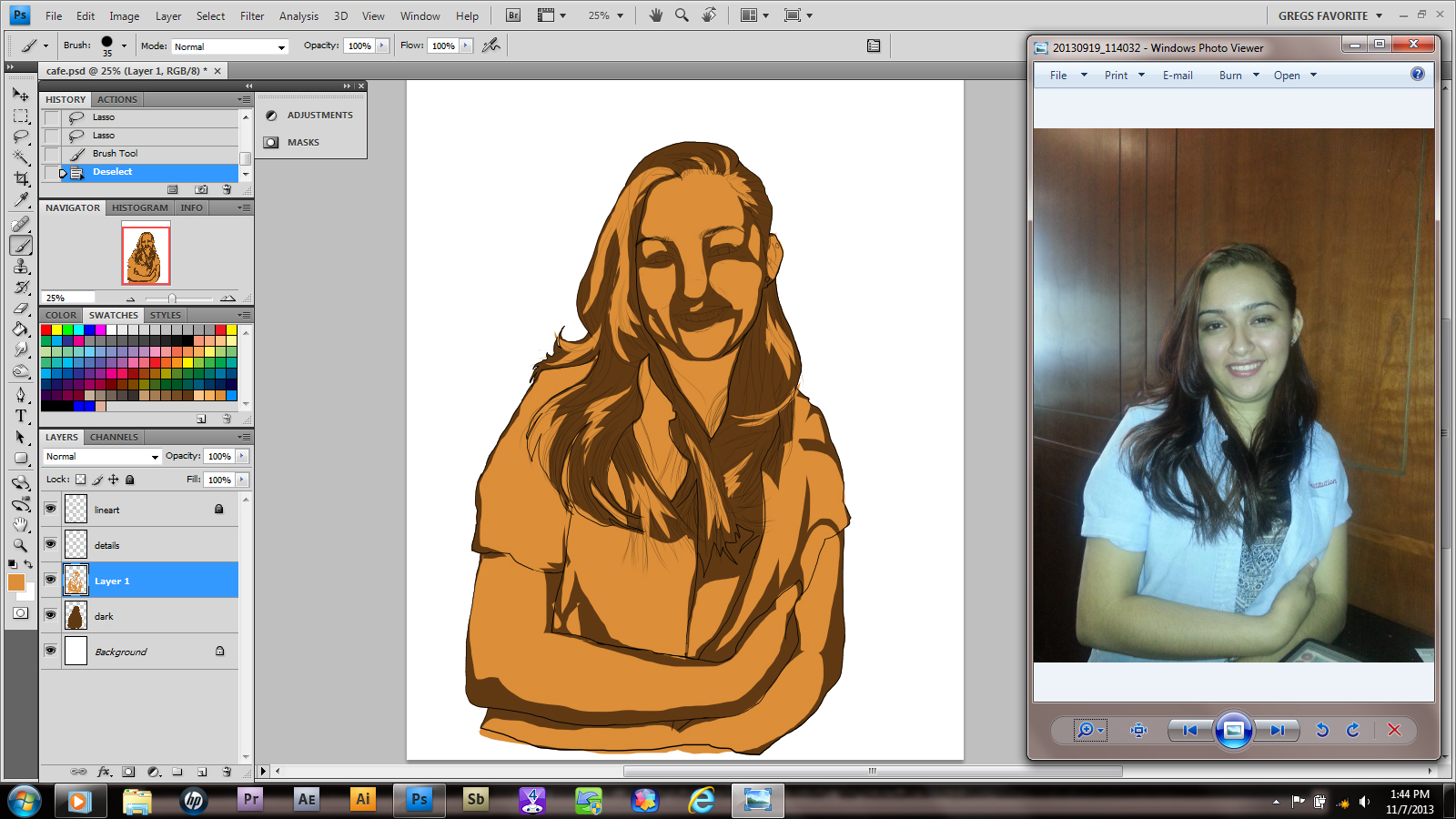
Under my line layers I create another layer and label it “dark”. My selections are still up; however only the highlighted layer will receive the affect of any action I take next. I select my dark layer and, using the paintbucket tool, I add a layer of color. notice that since I put it on a layer below the line work, I can still see my art on top of the color.

6

Here it gets a little interesting. After making another layer above dark, I use the lasso tool to pick all of my midtone areas. These aren’t world class accurate, but I get them as close as possible. From here its a simple matter of filling the selections with a color chosen with the paintbrush tool. Afterward don’t forget to deselect your area by simply pressing the D key on your keyboard.

Cafe Muse, part 1

cafe1

To begin I know a lot of guys make little composite sketches and practice in different colors and things to get started. That has never worked for me. All the work I’ve done that way always feel stiff and forced. I learned to draw by myself and didn’t get much in the way in formal education in techniques. Hell, my first art paper were the backs of my homework and whatever pencil my mom bought for school. I would start a picture from the part of the person I found most interesting, in this case her hand, which seems to be cupping her breast. This is how I work when I’m using source material; when it comes to original works from my noggin, I definitely will do a rough sketch first!

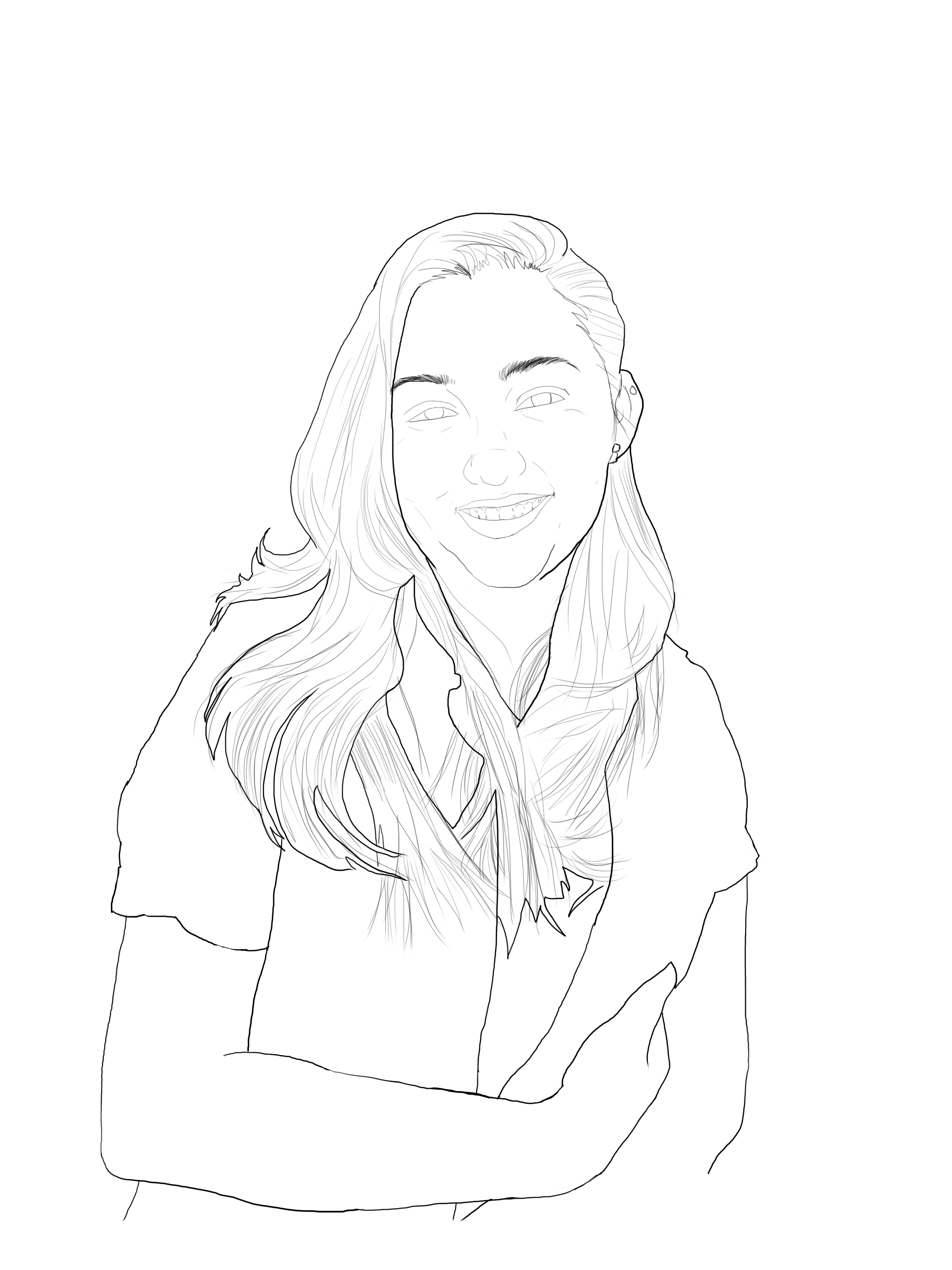
Because of my haphazard way of starting my pics, I tend to use really large canvases then crop them to size. So for major shapes or general outlines, I always try to use a brush size that is at least 3 points larger than the detail brush. Also, I try to keep these disparate line types on separate layers. That way if I don’t like my fine lines or overall outline, I can change them without affecting the entire image. Don’t forget to change the name of your layers so you don’t get the two mixed up and lock anylayer and group you’re not working on. Its easier than going back in the history to fix a mistake!

Well, that’s it for now. Next up will be colors and I promise more pictures